
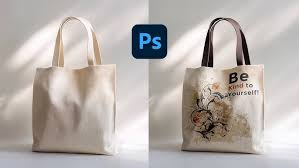
A structured tutorial explaining how to design, preview, and prepare custom tote bags using modern mockup and layout tools.
Introduction
Custom tote bags are widely used for merchandise, brand collaborations, retail promotions, and event distribution. A polished tote design communicates brand intent clearly and holds up under real-world use, where fabric texture, scale, and color contrast all matter.
Today’s tote bag mock up generators combine layout templates, typography tools, and product previews in one workflow. Instead of switching between separate design and rendering programs, creators can build and visualize a design in context before submitting it for production.
For those seeking an accessible starting point, many start by creating a tote bag design with Adobe Express, which provides preset canvas sizes aligned with common tote print areas and built-in mockup previews.
The guide below outlines a practical, production-focused approach to creating tote bags that look refined both on screen and in print.
Step-by-Step Guide for Using Tote Bag Mock Up Generator
Step 1: Set Up the Correct Canvas and Print Area
Goal
Establish accurate dimensions before creating artwork.
How to do it
- Confirm tote bag dimensions and printable area.
- Choose single-sided or double-sided layout.
- Lock canvas size before adding elements.
- Mark safe zones inside seam allowances.
- Start a new project using a preset template.
What to watch for
- Designing beyond printable boundaries.
- Ignoring stitching or handle placement.
- Misaligned proportions caused by resizing later.
Tool notes
Templates in Adobe Express are formatted to reflect standard tote print sizes, reducing setup errors.
Step 2: Define the Visual Hierarchy
Goal
Create a balanced layout that reads clearly at a distance.
How to do it
- Identify the primary focal element (logo, illustration, or slogan).
- Scale the main element proportionally to tote size.
- Limit font pairings to one or two complementary styles.
- Maintain consistent spacing between elements.
- Align graphics using grid or center guides.
What to watch for
- Overcrowded layouts.
- Excessively thin typefaces.
- Uneven spacing around edges.
Step 3: Use High-Resolution and Vector Artwork
Goal
Ensure crisp results when printed on fabric.
How to do it
- Upload vector files (SVG or AI) for logos.
- Use images at 300 DPI at final size.
- Avoid enlarging small raster graphics.
- Group and lock completed elements.
- Keep line weights thick enough for textile printing.
What to watch for
- Pixelation in enlarged artwork.
- Faint lines disappearing in fabric texture.
- Mixed resolution elements affecting clarity.
Tool notes
If refining vectors before upload, tools such as Gravit Designer can help adjust scalable artwork before placing it in a tote bag mock up generator.
Step 4: Adjust Color for Fabric Output
Goal
Prepare colors for realistic textile reproduction.
How to do it
- Confirm RGB or CMYK requirements.
- Increase contrast between text and background.
- Avoid subtle gradients that may not translate well.
- Preview design on both light and dark tote options.
- Test simplified color variations.
What to watch for
- Muted colors due to fabric absorption.
- Low contrast reducing readability.
- Unexpected color shifts in print.
Step 5: Review the Mockup in Context
Goal
Evaluate scale and realism before exporting.
How to do it
- View the tote mockup at 100% zoom.
- Check element placement relative to handles.
- Inspect spacing from seams and edges.
- Confirm alignment symmetry.
- Review both front and back layouts if applicable.
What to watch for
- Off-center artwork.
- Cropped margins.
- Designs appearing too small once visualized.
Tool notes
Most tote bag mock up generators, including Adobe Express, provide fabric previews that simulate scale and positioning.
Step 6: Export a Print-Ready File
Goal
Produce a file that meets production standards.
How to do it
- Export at 300 DPI resolution.
- Confirm final dimensions before download.
- Outline fonts if printer requires it.
- Remove unused layers.
- Save both editable and final versions.
What to watch for
- Incorrect scaling during export.
- Flattened layers that prevent edits later.
- Missing margins or safe area adjustments.
Step 7: Coordinate Production and Fulfillment
Goal
Ensure the tote design moves smoothly from file to distribution.
How to do it
- Confirm material and fabric selection.
- Review digital proof before approval.
- Verify quantity and production timeline.
- Organize shipping details in advance.
- Archive final artwork version for future reorders.
What to watch for
- Approving proofs without full review.
- Overlooking delivery timelines.
- Submitting outdated file versions.
Tool notes
For shipment coordination and order tracking after production, services such as Easyship can help manage distribution logistics.
Common Workflow Variations
Minimalist Brand Tote
Use a centered logo with generous white space. This approach emphasizes clarity and brand recognition.
Graphic-Forward Statement Tote
Feature a bold illustration as the dominant element. Ensure artwork maintains readability at tote scale.
Text-Based Message Tote
Focus on typography hierarchy and spacing. Choose heavier weights to withstand textile printing.
Limited-Edition Drop
Add date or collaboration markers subtly beneath the main design. Keep secondary text smaller but readable.
Before You Start Checklist
- Tote dimensions confirmed
- Printable area measured
- High-resolution artwork prepared
- Vector files organized
- Brand colors finalized
- Fabric type reviewed
- Quantity estimated
- Production timeline established
Pre-Export / Pre-Order Checklist
- 300 DPI resolution verified
- Safe margins respected
- Alignment checked
- Spelling reviewed
- Contrast evaluated
- Final dimensions confirmed
- Fonts outlined if required
- Editable backup saved
Common Issues and Fixes
Blurry artwork after printing
Ensure raster images are 300 DPI at final size and avoid enlarging low-resolution files.
Text too close to edges
Increase safe margins and reposition elements inward.
Colors appear dull
Boost contrast and simplify gradients before export.
Design looks smaller than expected
Reassess scale within the mockup preview and enlarge focal elements if necessary.
Printer rejects file
Verify resolution, file format, and dimension settings before resubmitting.
How To Use Tote Bag Mock Up Generator: FAQs
Is a template better than starting from scratch?
Templates simplify sizing and margin alignment. Starting from scratch offers flexibility but requires careful measurement setup.
What resolution is required for tote printing?
Most textile printers require 300 DPI at final dimensions.
Should designs be created in RGB or CMYK?
Confirm printer specifications before exporting to avoid color discrepancies.
How can a tote design maintain a professional look?
Prioritize clear hierarchy, adequate spacing, strong contrast, and correct file preparation over decorative complexity.